2.0Features are now plugins you choose

Clean your Mac.Look before you delete.

Find the caches, leftovers, and large files taking up space, see what each one is, and decide what goes. Since 2.0, every feature is a plugin, so you install only the ones you use.

Download Cleer
  • Built with Rust + SwiftUI
  • macOS 13 or later
  • 7 day refund
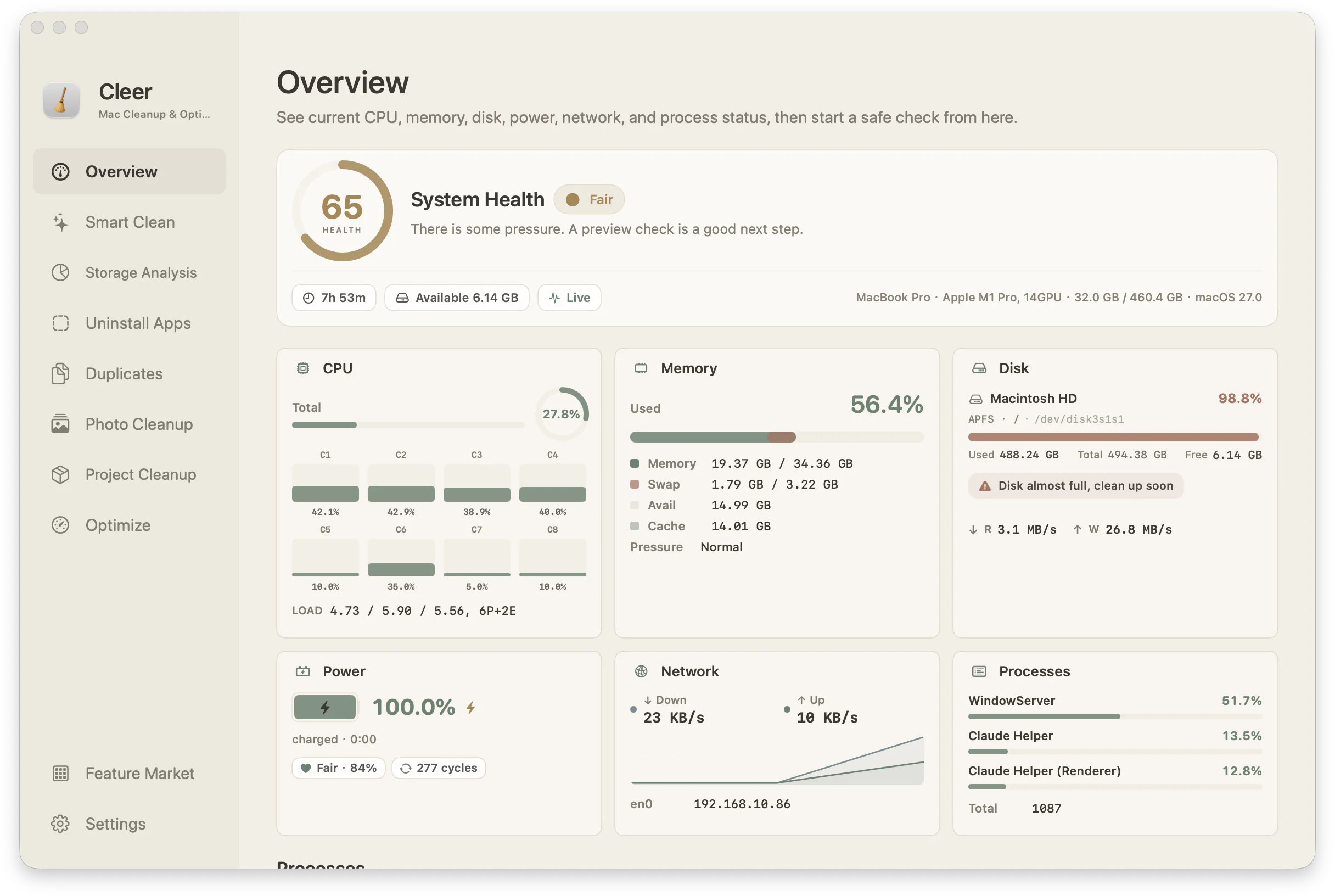
Cleer overview screen

Feature Market · New in 2.0

Install only what you use.

Every feature in Cleer is now a plugin. Choose them in the Feature Market and the sidebar shows only those. They are all built in, so installing one turns it on, downloads nothing, and costs nothing extra.

  • New installs start with Smart Clean, Storage Analysis, and Uninstall Apps.
  • Coming from 1.x, every feature you used stays installed, settings included.
  • Each plugin says what it reads, what it changes, and whether it uses the network. None of them do.

How it works

Scan, review, confirm.

Every cleanup plugin follows the same calm sequence.

  1. 01

    Scan

    Choose a task and let Cleer inspect the relevant parts of your Mac locally.

  2. 02

    Review

    Read the result, open the details, and deselect anything you want to keep.

  3. 03

    Confirm

    Approve the final list only when it matches what you intended.

Plugins

A closer look at five plugins.

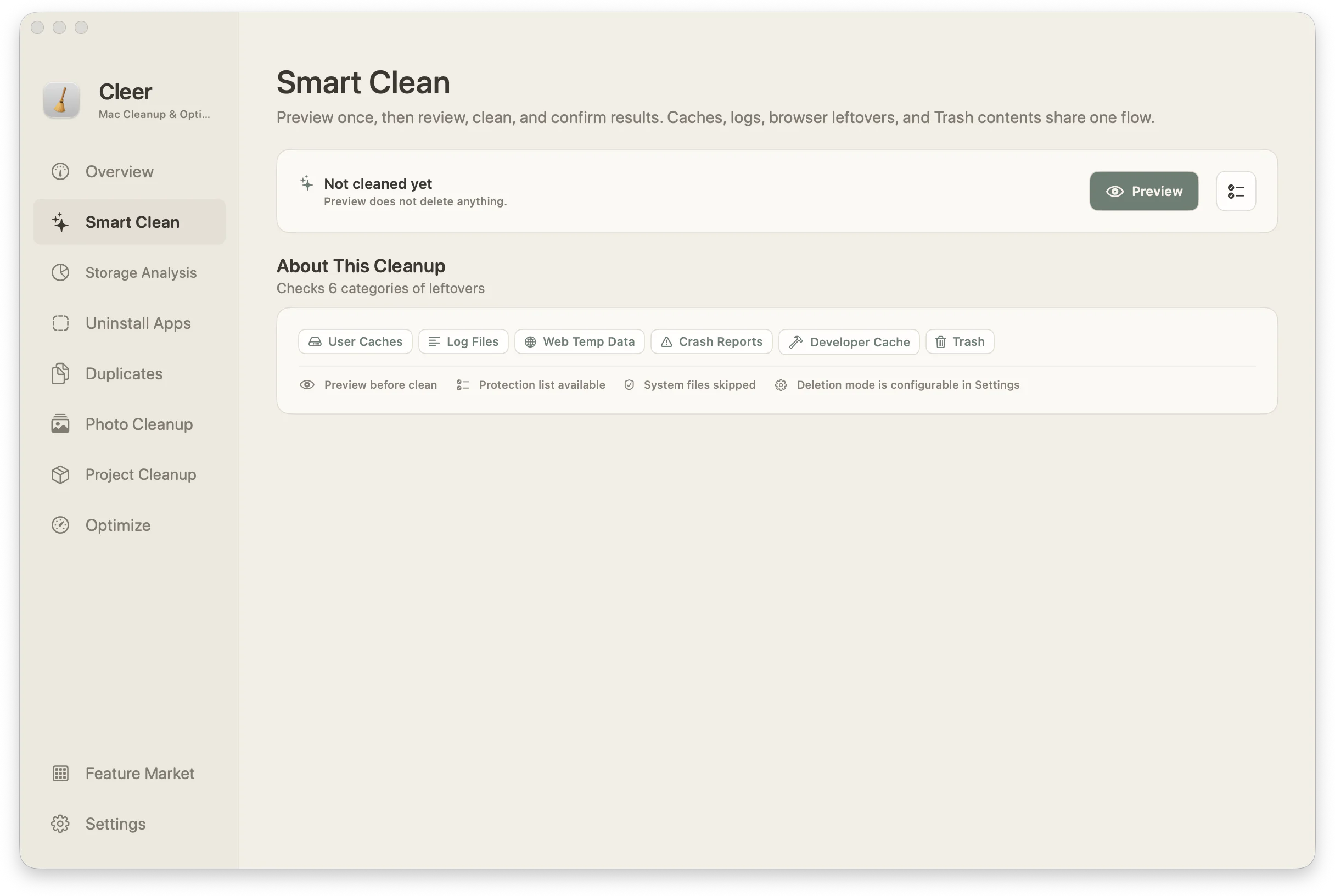
01Smart Clean

Preview once, then review, clean, and confirm.

Caches, logs, browser leftovers, crash diagnostics, developer caches, and Trash share one preview first flow: suggested, needs review, or won't auto clean.

  • Preview before cleanup
  • Protection list
  • System files skipped
Cleer smart cleanup screen

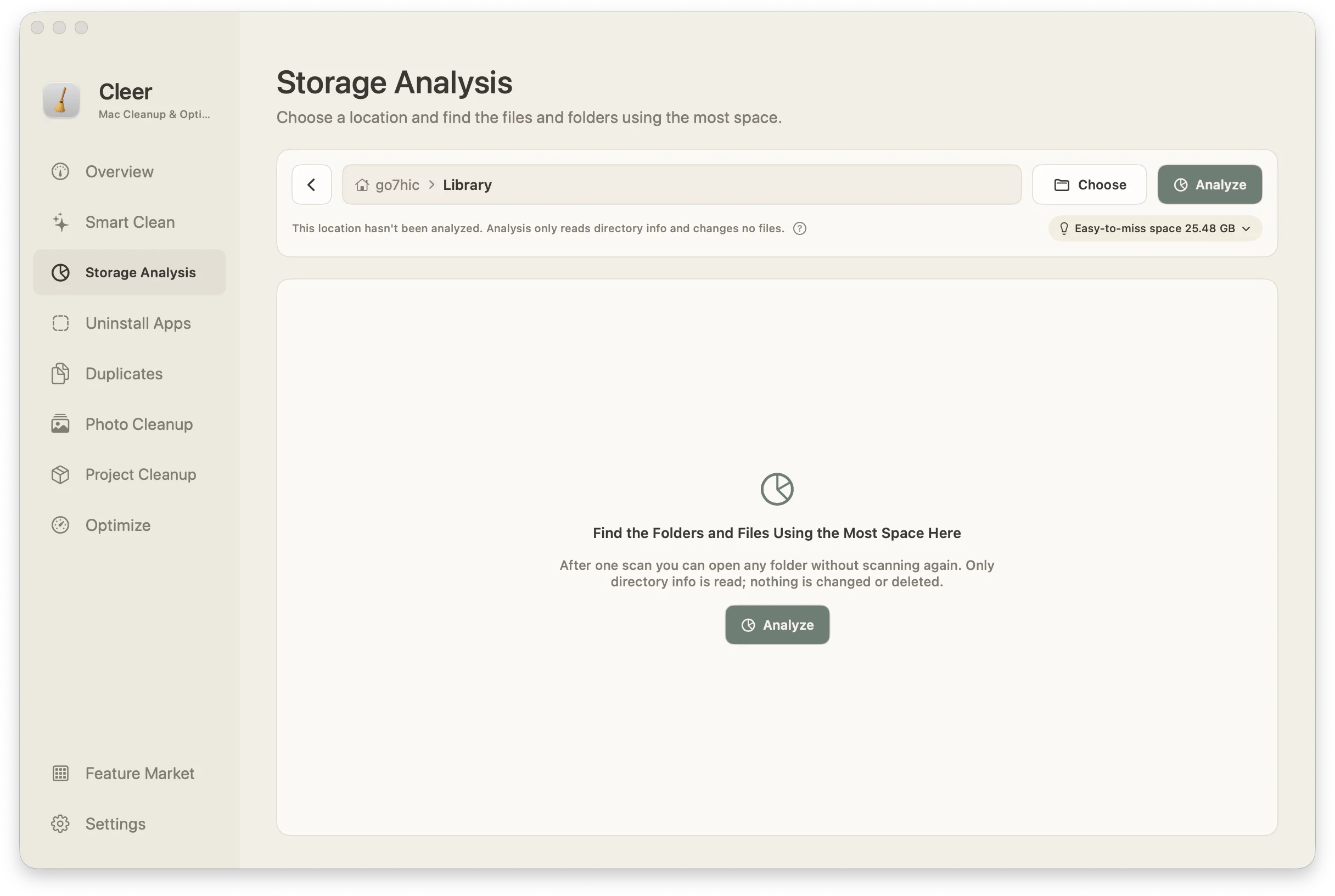
02Storage

Choose a location and find what uses the most space.

Large files and heavy folders surface in one pass, so you can review reclaimable space without hunting through Finder.

  • Large-file focus
  • One place to review
  • Less Finder hunting
Cleer storage analysis screen

03Photo CleanupNew in 2.0

Keep the best shot. Review the rest.

Find similar shots, old screenshots, and possibly blurry photos in your Photos library or in folders you choose. Analysis runs on your Mac, and nothing is downloaded from iCloud.

  • The sharpest of each group stays
  • Old screenshots preselected
  • Library photos go to Recently Deleted

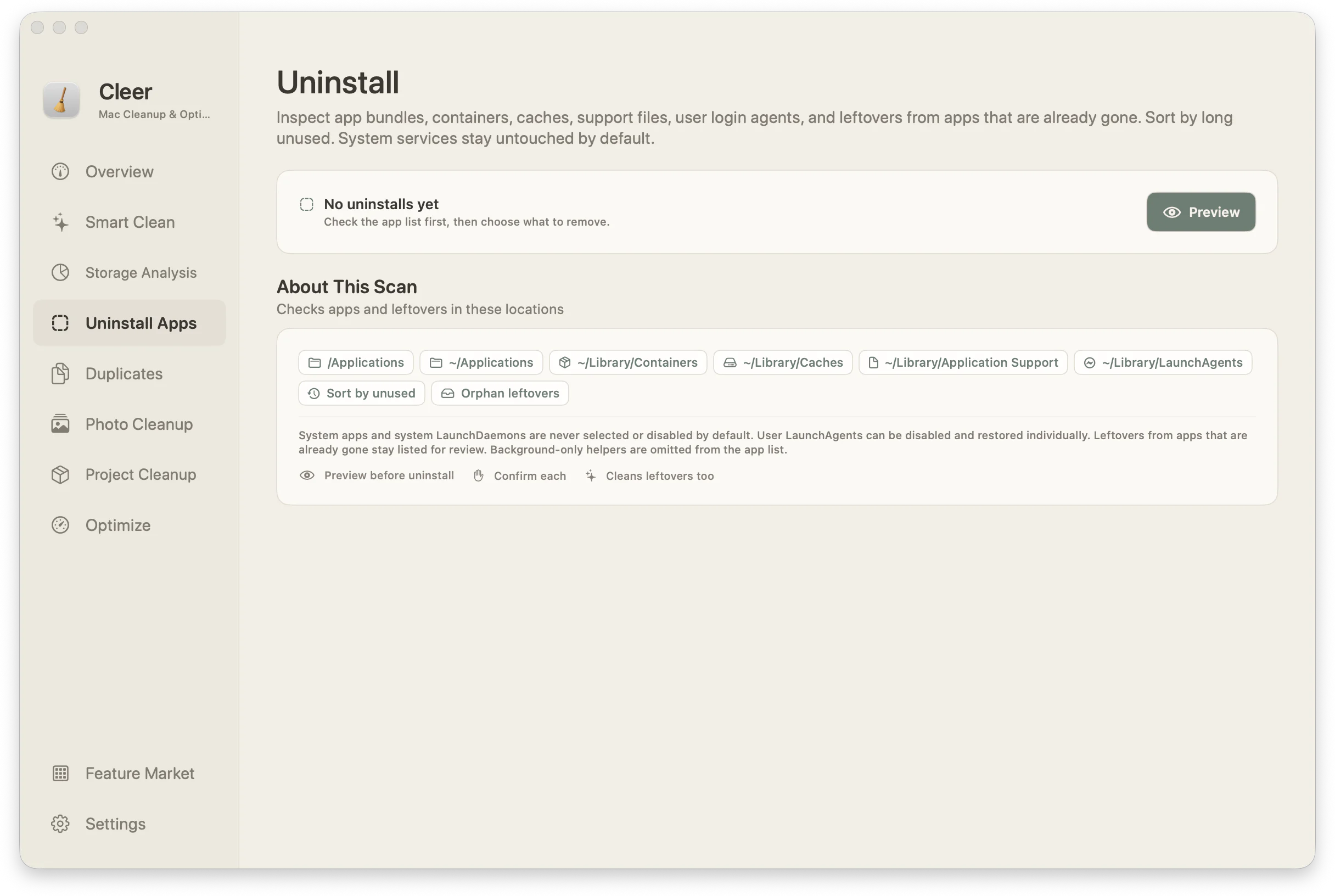
04Uninstall

See leftovers before the app disappears.

Inspect app bundles, containers, caches, support files, and user login agents. Sort by long unused. System services stay untouched by default.

  • Residue visible
  • Preview before removal
  • System services left alone
Cleer uninstall apps screen

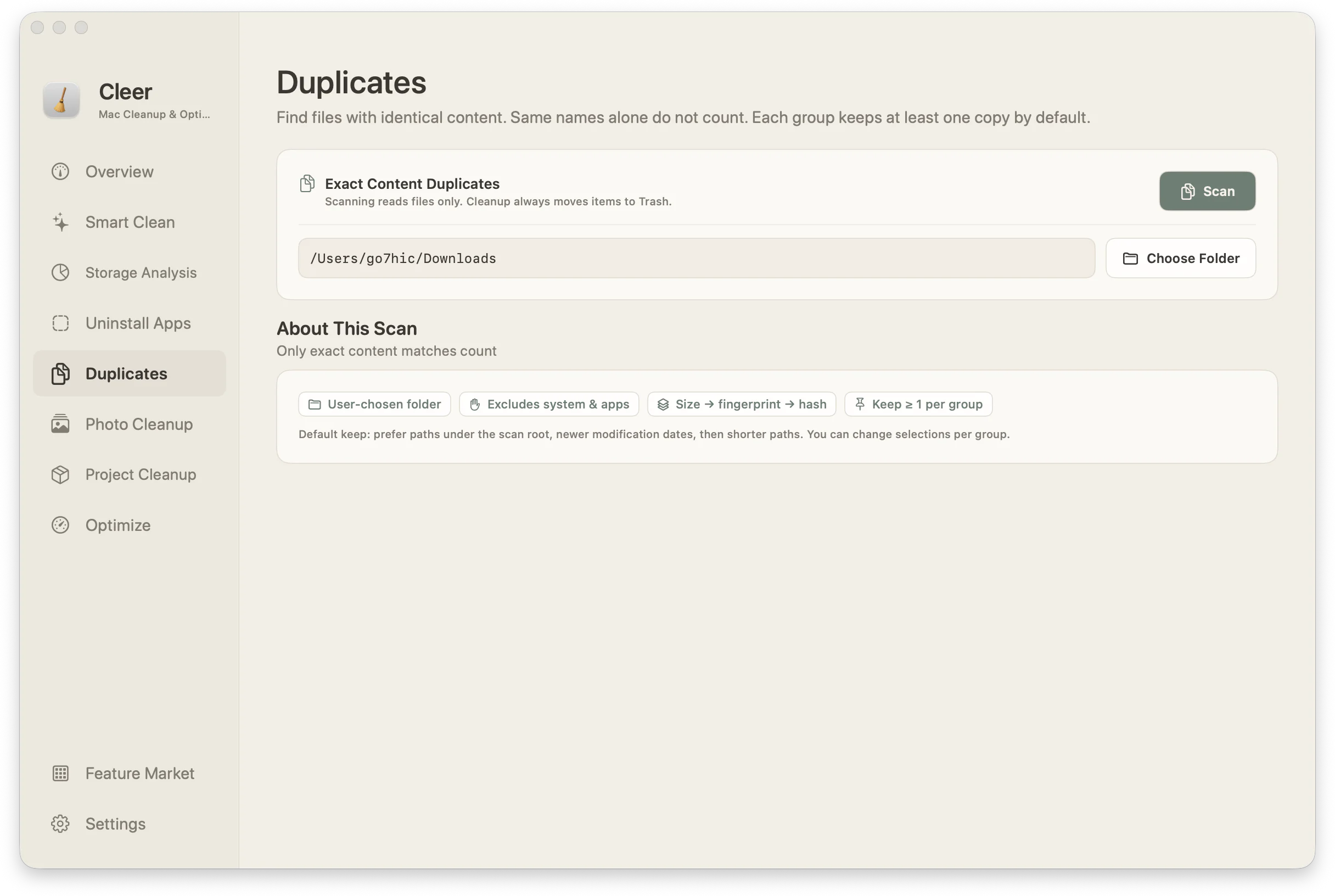
05Duplicates

Find files with identical content. Same names alone do not count.

Scanning reads files only and never changes them. Cleanup always moves extras to Trash, and each group keeps at least one copy by default.

  • Content-hash match
  • Keep at least one
  • Moves to Trash
Cleer duplicates screen

Safety

What Cleer never touches.

Some things can't be downloaded again. Cleer refuses to clean them in every workflow, whatever is selected.

Items inside Documents or Downloads can be reviewed and cleaned. The folders themselves stay.

Keychains and accounts
~/Library/Keychains · Accounts
Mail and Messages
~/Library/Mail · Messages
Safari, Calendars, Contacts
~/Library/Safari · Calendars · Contacts
Photos and Music libraries
*.photoslibrary · *.musiclibrary
macOS system folders
/System · /usr · /Library
Your folders themselves
~ · Documents · Downloads · Library
  • One protection list for everything

    Folders on your cleanup protection list are skipped by every cleanup and by Agent Tools, not only by Smart Clean.

  • Trash for personal files

    Documents, photos, videos, music, and mail always go to the Trash, even if Cleer is set to delete permanently.

  • Photos go to Recently Deleted

    Photo Cleanup moves library photos to Recently Deleted in Photos, where you can recover them for 30 days.

  • Duplicates checked twice

    Each copy is checked again right before removal. One unchanged copy always stays.

  • Scans never download from iCloud

    Files that live only in iCloud are never opened, so scanning downloads nothing.

  • Verified updates

    Cleer installs an update only when it is signed by its developer and approved by macOS.

Agent Tools · Beta

Drive Cleer from the terminal or your Agent.

A local cleer command and MCP server for Cursor, Codex, and Claude Code. Agents scan and prepare cleanup plans with the same engine as the app. A plan runs only after you confirm, and only moves items to the Trash.

Read the docs
cleer scan duplicates --path ~/Downloadscleer cleanup apply PLAN_ID# lists the plan, asks y/N, then moves it to the Trash
  • cleer CLI

    Scan folders, find duplicates, and prepare cleanup plans from your shell.

  • Local MCP

    stdio only. No open network port. Install from Settings in one click.

  • You confirm cleanups

    Applying a plan lists it and asks you first, then moves items to the Trash. The MCP cleanup tool appears only with --allow-cleanup.

Pricing

One purchase. No subscription.

No trial gates, no subscription, and no account system to babysit.

See the evidence. Make the call.

Cleer

$13.99

A single purchase for one Mac. Updates included.

  • Pay once and keep it
  • Updates included
  • One Mac activation
  • 7 day refund available
You enter your activation email first, then complete payment in Stripe.

Know the details before you buy.

How many Macs does one purchase cover?
One purchase activates one Mac. If you reinstall Cleer or replace your Mac, open Settings and unbind the license, then bind it again on the Mac you want to use.
What are Cleer Agent Tools?
Agent Tools is a beta that adds the cleer CLI and a local MCP server. Install it from Settings. Terminals and clients like Cursor can scan and prepare cleanup plans. Applying a plan asks you first and only moves items to the Trash.
Do plugins cost extra?
No. Every plugin is built into Cleer and covered by the one purchase. Installing a plugin only turns it on; nothing is downloaded.
What happens when I upgrade from 1.x?
Every feature you used stays installed with its settings, and a one-time notice explains the Feature Market. Your cleanup history and license carry over.
Will I see my license key immediately after paying?
Yes. Right after checkout, the success page shows your license key and download link. The same details are also sent by email.
Which email becomes my license email?
Before Stripe opens, Cleer asks for your purchase email. That same email is prefilled at checkout and becomes the email tied to your license.
Does Cleer delete files immediately?
No. Preview does not delete anything. Cleer shows a readable list first, so you confirm only after you understand the change.
Which versions of macOS are supported?
Cleer supports macOS 13 Ventura or later on Apple silicon and Intel Macs.
Is Cleer a subscription?
No. The $13.99 purchase is a single payment and includes future updates. If you are not satisfied, you can request a refund within 7 days.
Does cleanup run on my Mac?
Yes. Scanning and maintenance run locally inside the native macOS app. Activation and update checks need a network connection.

Free space without handing over control.

Buy once, receive your license instantly, and start from a clear preview of your Mac.

Download Cleer